 Hushtop
Install Hushtop
Hushtop is signed and notarized by Apple, so it installs like any app you download. It takes about a minute.
Your trial starts only when Hushtop actually runs, so installing never uses up trial days.
1. Move it to Applications
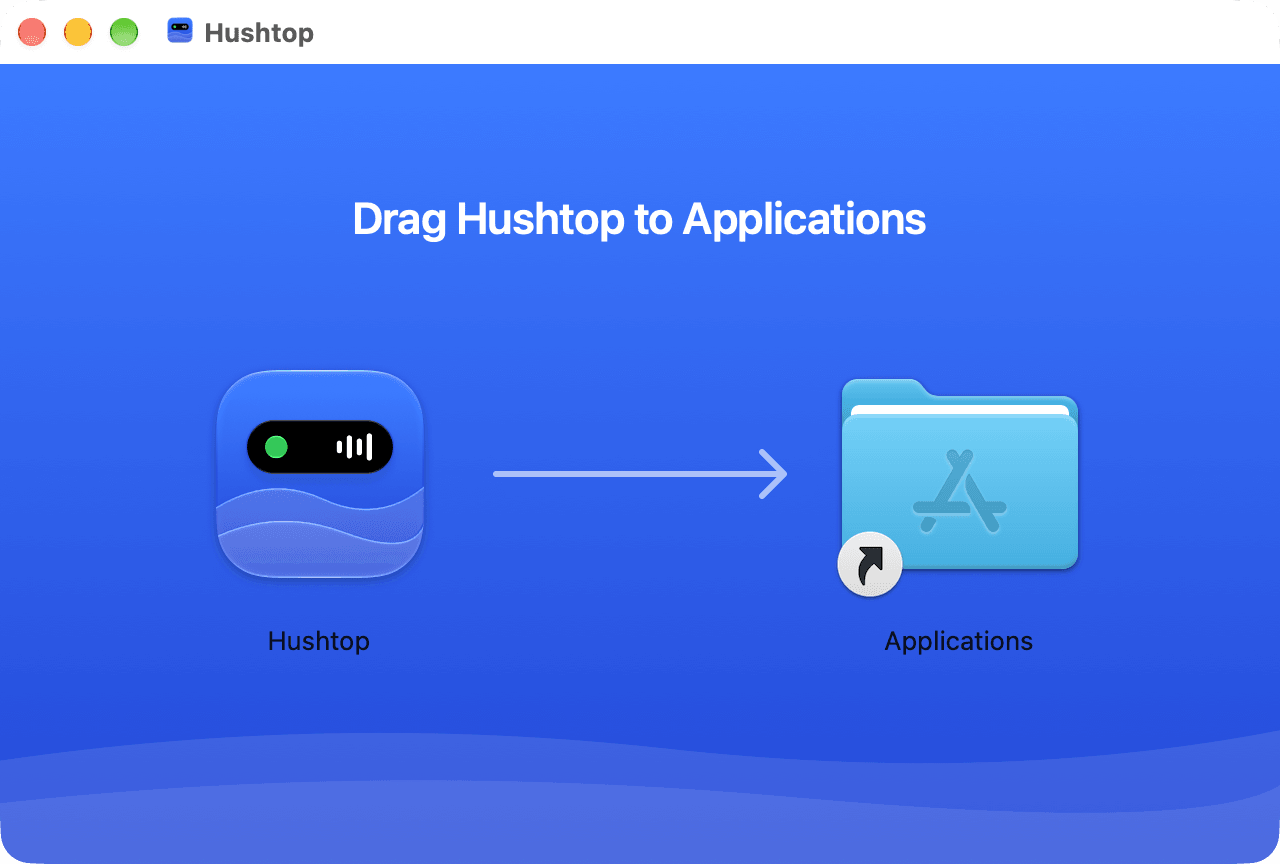
Open the downloaded Hushtop.dmg and drag Hushtop to the Applications folder.
2. Open it
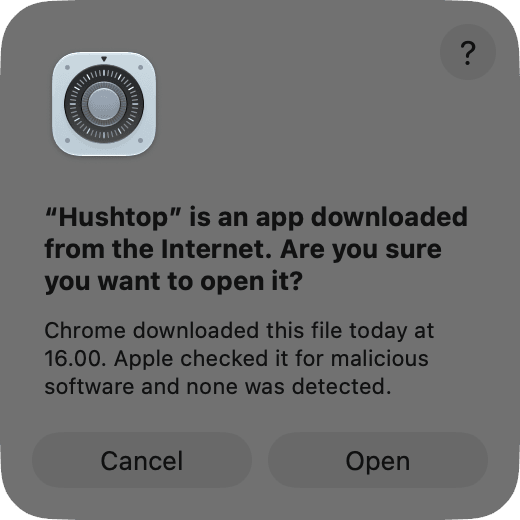
Open Hushtop from Applications. The first time, macOS asks: “Hushtop is an app downloaded from the Internet. Are you sure you want to open it?” Click Open. It only asks once.
3. Allow Accessibility
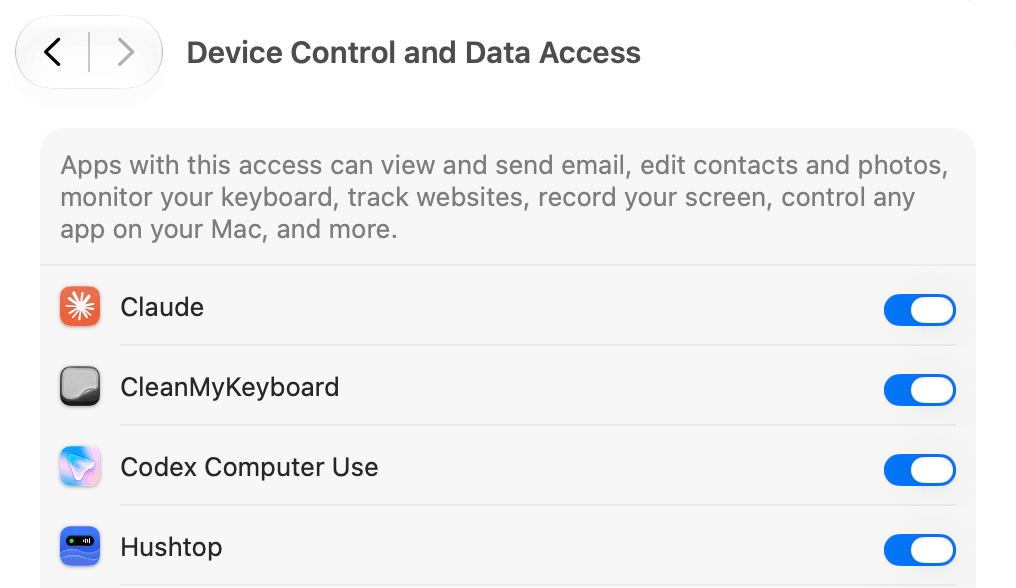
Hushtop asks for one permission, Accessibility, so it can work with the notch. On its One permission step, click the button on the Accessibility card, then turn on Hushtop in System Settings › Privacy & Security › Accessibility (called Device Control and Data Access on macOS 27). Hushtop notices and moves on by itself. Get started explains what it’s used for.

Always from hushtop.app
Download Hushtop only from this website. Updates come from here too, signed, and Hushtop installs one only if its signature checks out.